Sunday, January 19, 2020

How top control work in Opencart custom product designer Extension?

If you want to open your online printing shop so Custom Product Designer for you. Opencart custom product designer gives us a different type of functionality to make product designs easily and order them. Custom Product Designer Provide many tools to make an attractive design on the product like T-Shirt, Coffee Mug, Cap, etc. Purpletree Opencart product designer plugin is a very powerful designing tool for making a design on products for Opencart Store. When customers purchase a product on your website then he/she can customize the online products before ordering and view product design after a complete customization process. There are different ways for your customers for product designing.

How to customer product designer work

Purpletree Online Product Designer extension is very easy and customer-friendly to customize your products. In this extension, customers can add different types of Google fonts and use these fonts on Opencart custom product designing. Customer can add text with multiple designs and change text properties like text background color, text color, font size, shadow, text-align, rotation, line height, outline width, and outline color, horizontal and vertical scale, etc. these text properties make your design very attractive and unique.

Top Control on Purpletree Custom product designer

· Toggle Flip- If you want to make a mirror image of your text or images then select the text or image and click on the Toggle Flip button.
· Horizontal Align — If you want to Horizontal Align text or image then select text or image layer and click on the Horizontal Align button.
· Vertical Align —If you want to Vertical Align text or image then select text or image layer and click on the Vertical Align button.
· Move Left —If you want to move text or image left then select text or image layer and click on Move Left button.
· Move Right —if you want to move text or image right then select text or image layer and click on Move Right button.
· Move up — If you want to move text or image up then select text or image layer and click on the Move Up button.
· Move Down —If you want to move text or image down then select text or image layer and click on the Move Down button.
· Remove — If you want to remove text or image then select text or image layer and click on the Remove button.
· Copy — If you want to copy any text or image then select text or image layer and click on the copy button. You can drag you copy text or image with the help of a mouse.
· Reset — If you want to reset the product design or printing area then click on the reset button. After that confirmation box is open then click on the ok button. Thereafter your design area is reset.
· View — If your design is completed and you want to view your design product final preview then click on the view button.
· Undo — If you want to undo any action then click on the Undo button.
· Redo — If you want to Redo any action then click on the Redo button.
· Zoom — With the help of the Zoom tool you can zoom product image in different sizes 50%, 100%, 125%, 150%, and 200%.

Monday, January 13, 2020

How admin and seller can create a blog in Opencart multivendor?

Purpletree Opencart Multivendor Marketplace Seller Blogs functionality gives customers or readers the confidence to trust in your brand name and quality, Opencart multivendor extension Seller Blogs allows Seller to create and edit their own blog posts. Also, it gives Seller access to post their blog.
Features:-
· Admin, as well as Seller, can create their blog and post it on the website.
· Admin can manage all blogs.
· A separate blog for the sellers of the marketplace is defined where sellers can post blogs.
· Sellers will have a separate page for their own blog in their profile in the Seller Options menu.
· Admin can set the configuration setting for publishing/un-publishing of blog posts by the seller.
· Admin can also give permission to each seller separately for publishing/un-publishing of blog posts.
· Facility to add tags based on different categories.
· Customers can see the seller’s blog by visiting the seller’s profile page.
· Any user whether the customer or admin can comment on the blog posts by the seller.
· Admin can approve/unapproved/delete action for the seller’s blog.
Let do that,
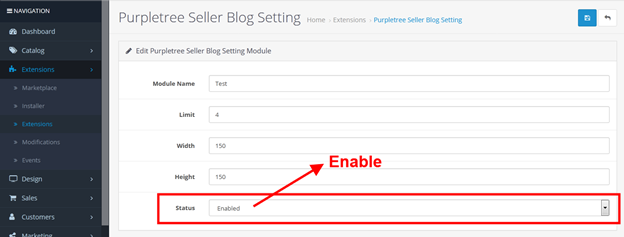
· Firstly we have to enable the blog from Admin so, to do that go to Admin > Extension > Extension > Modules >Purpletree Seller Blog Setting > Click to install button > Then click to red color edit button > Enable the blog > finally save the settings.
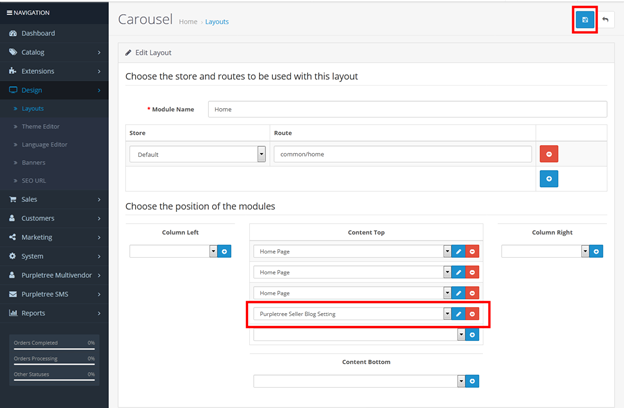
· In the second step, the admin has to set the module on the home page of the website so to that, go to Design > Layout > Edit Home > Add the module in the Content Top > Then Save the settings.
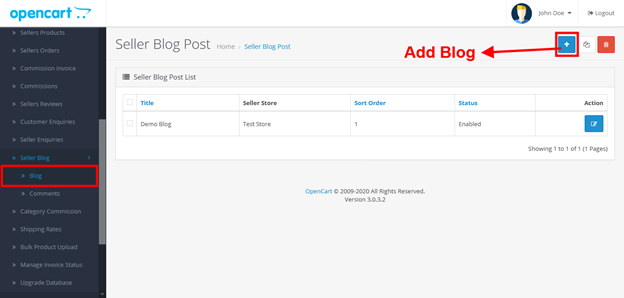
· Then, Go to Purpletree Multivendor > Seller Blog Menu > Create Blog.
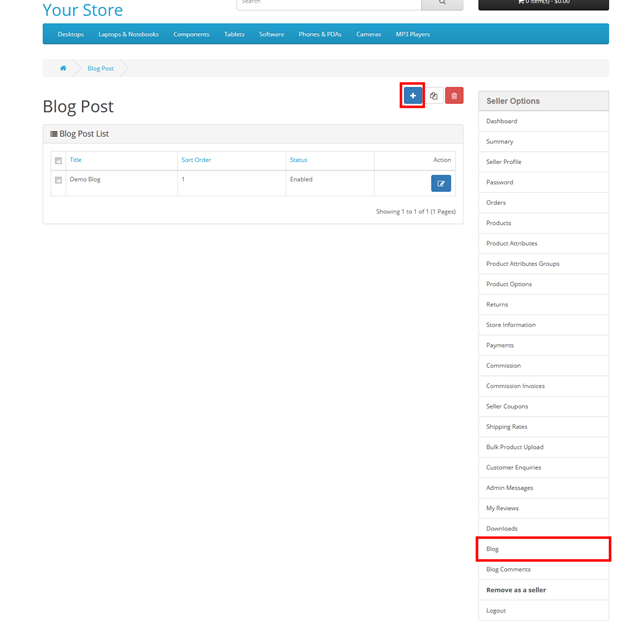
· In the same way seller can create the blog as well, To do that login with the seller account then Go to Seller Options > Blog > Create Blog.
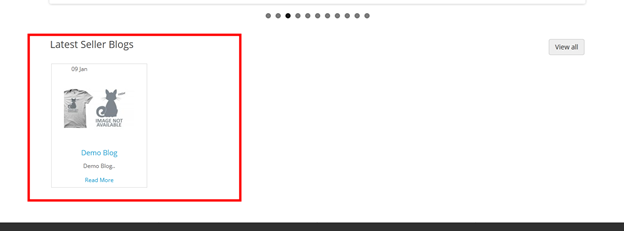
· Finally, after doing all this go to the home page of your website then you are able to see the blog which is created by admin.
Get this extension at: https://www.purpletreesoftware.com/multi-vendor-marketplace-opencart.html

Tuesday, January 7, 2020

Advanced and Convenient Mobile app for Magento 2 and Opencart


In the Digitized world, the Mobile app is a must for any business to survive so that any user who wants to buy anything can buy it with the click of a button from their mobile phones. Mobiles are a necessity for every individual, be it a child or an old person. It becomes a need for everyone, for a child it is to study, buy online books or games, for older people, to buy home glossary to furniture.
CMS(Content Management System) provides the platform for sellers to sell their products from the website just by installing it on the server and the user opens the website and for any eCommerce website, the user buys stuff online from the website. Magento and Opencart both are great CMS and do their purpose excellently. For Sellers to sell their products on Opencart and Magento mobile app you can even use Purpletree Marketplace Multivendor for Opencart and Magento, which allows the seller to register on the website and start selling their products from the admin store, no need to set up their website or install CMS (Magento or Opencart).
Now comes the real-life scenario, a person’ works from morning to evening doesn’t have time or you can say less time to open up the laptop or computer and open up the website and search for stuff they want to buy it, rather they prefer mobile apps for the purpose, so that even in a day during work if they got any spare time or even 5–10 minutes they would like to use it wisely, they would prefer to open up mobile apps on their phone and buy the stuff within a minutes from mobile apps.
Mobile apps are designed in a such a way that if any user comes to them, they load quickly and user would see meaningful content which would be easily readable on phone and buy the stuff from app without having to browse all the website and finding all the irrelevant stuff which is not much useful and hard to read in small screens of phones.
The Best Solution for the same is Purpletree Mobile Application for Opencart 3 and Purpletree Mobile Application for Magento 2. Our ready to build apps are the most convenient way for any CMS website which is built on Magento or Opencart to create their apps from us and publish it on the app store instantly. No need to do any hard coding. All the content comes on the mobile app is coming from API’s we have built specifically for Opencart and Magento.
The Best part of this is that the website admin just has to purchase the app from our website and open a ticket with us for communicating further details regarding the app. Just sit for a while and we will build an app for you without any further hassle. We might need a Logo to be used in the app and Splash screens required for the app. Or we will use it as in your website logo
Please make sure that before purchasing the app, you already have installed Magento mobile app or Opencart native mobile app on the server and the website and admin for the same is fully working. With the Purpletree Mobile app, you can manage the app data right in front of you from the admin. Open the admin for your website and change the Slides of the slider on the homepage, with just a click away as you change it for a website. We will provide you full documentation regarding the same for further changes which could be useful for day to day changes and can be done right from the admin only.
Some of the following Features of Purpletree Mobile app are-
  • Supports Opencart and Magento Multi-Vendor Extension, with seller and buyer features available in the app.
  • Completely white-label application, having only your brand, logo and name.
  • All data comes from your existing OpenCart website/Magento Website, and the application adds its data also (like banners, etc.) using an admin section of OpenCart/Magento.
  • This is a hybrid mobile application. If you have the source code, it can be launched on all platforms like Google Play Store, Apple Store, Windows Store, etc.
  • Home page with multiple banner blocks available
  • Featured products on home page
  • Special products on home page
  • Category icons on home page
  • Custom logo according to business
  • Custom unlimited color schemes available
  • Custom pages for policy
  • Custom footer
  • Category listing page
  • Product details page
  • Cart page
  • Search page
  • Check out page
  • User dashboard
  • User profile
  • Login page
  • Forgot password
Publishing the Application
  • We will build the application for you and publish it on the PlayStore.
  • After purchase, open a ticket from our helpdesk and we will provide your branded mobile application.
  • You need to have an already existing OpenCart v3/Magento 2 based website. If you do not have that, it can be set up as an additional task.
  • If you want to publish using your play store developer account, you can request for the same also.
  • Source code is also available at extra cost.

Friday, January 3, 2020

OTP Verification on Customer Registration in Opencart

Purpletree 2 Factor Authentication, OTP and SMS Notification extension for Opencart allows the customer to register on the frontend website only after OTP verification on their mobile number, this will allow admin to have only genuine users on their website which are real customers. This way non-essential users or computer-based hacks, moreover by this way admin would get to know the user is genuine and admin could send future SMS notifications on user mobile number which they have used while signing in and are not just spam mobile numbers.
Admin could easily set up the extension and enable the SMS Verification on customer Registration. Just login to the admin panel and go to Purpletree SMS > Settings. From there click on SMS Verification Tab and there is an option to Enable the Verification on Registration. To set Template from admin there is a text area below the Template field. Enter the text which you want to send on SMS to the customer. For One Time Password just Enter ­ _OTP_ and rest the text as you won't like as we have already set the default string text as. Your Verification Code is _OTP_. Just replace the text with whatever text you would like to send to the customer. Just remember that _OTP_ must be included in the message for the OTP number to be sent successfully to the customer.
There is also an option to send a type of Verification. One is E-Mail only, then another is Mobile only, and the last one is for both i.e. Mobile and E-Mail. For Mobile Verification Valid SMS API URL must be configured to work properly, else customers would not be able to receive SMS on their Mobile. We have also provided E-Mail Verification. Admin can choose to Verification for Mobile and E-Mail also. if a user is not able to receive Mobile SMS due to some issue in SMS API, they would check their email for verification OTP for Email. Please also note that Mobile OTP and E-mail OTP are verified individually a customer would receive different OTP for Mobile and Different for E-Mail. So IF your SMS API is not working just Enable Verification for E-mail only. This will be beneficial for both end-user and admin. No need to purchase any API for E-Mail. Just Install the Purpletree 2 step authentication, OTP and SMS Notification for Opencart on your website and Enable it from Settings and admin is ready to go with just a few clicks.
On the Customer side for Purpletree two factor Authentication, OTP and SMS Notification for Opencart to work, the customer just has to go to the registration form for Verification On registration. If this extension is Enabled then on registration form E-Mail ID and Telephone is Required for Register to work properly. The user has to enter Valid E-Mail ID and Valid Telephone number. If everything is correct then click on the Continue button and Popup for Verification of E-Mail Id and Mobile number. Enter Valid OTP you have received for Mobile and E-Mail on respective Textboxes and click on confirm. If the User has not received any one of the OTP then they can also click on Resend Button it will resend the OTP on Mobile and E-Mail again. Just make sure to Enter New OTP for both E-Mail and Mobile if the Resend button is clicked.

Sunday, December 29, 2019

How seller and customers can checkout in Opencart Mobile app


Purpletree has built an Opencart mobile app that allows customers and sellers to browse the catalog and make purchases via the app. The mobile app is available for both IOS and Android which is compactable with IPhone/IPad and all Android Smartphone or tablets. The Purpletree Opencart mobile app has a lot of features that are very flexible for the customer to purchase on a store by using the Opencart multi-vendor mobile app. The Purpletree’s Opencart mobile application attracts people for homepage showing the banner slider, categories and featured brands as well. Customers can search for products, can select the product from sellers, Can select the products categories wise, add to wishlist, update account information, read reviews/provide the reviews to products, and also proceed towards an easy to use checkout process supporting the some specific payment gateways and shipping methods (both online and offline).

· Now, open your opencart mobile app.
· Now, you need to login/signup with your account by clicking to the face icon.
· Login with your account if you have, otherwise click to signup button. In this blog, we are assuming that you have an account with is associated with your store.
· After login as a customer now, you need to add some products into your cart for checkout. So, find any product by searching then click on it then finally clicks to add to the cart button.
· Click on the small bag icon button on the right side corner of the app.
· Click to checkout button then you will redirect to the billing address page then choose your address or add your new address then click to Proceed to Shipping Details.
· Then select the payment method then if you want to pay with PayPal then click to PayPal otherwise COD.
· In the final step confirm your order.
· Then finally you will see the success screen that means you have ordered the product.


Tuesday, December 24, 2019

How to add text in Opencart custom product designer extension

Purpletree Opencart product designer plugin is a very powerful designing tool for products. Which is allowed to your customer to create a design on the t-shirt, labels, stickers, lettering, mugs, business card. Which is needs to be customized online products before ordering. When customers purchase a product on your website which can customize the online products before ordering and view product design after a complete customize process. There are different ways to your customers for product design.
This opencart custom product designer extension is very simple and user-friendly to customize your products. In this extension, customers can add different types of google fonts and use their font on online custom product designing. Your customer can add text with multiple properties and change text properties like text background color, text color, font size, shadow, text-align, rotation, line height, outline width, and outline color, horizontal and vertical scale, etc. this text properties make very attractive your design.

When customer add text on product image after you customer will get a text layer in the layers menu. Background image set to default. Background image, The customer cannot change. The background image can move up and move down. Customers can delete any layer of text, clipart, and imported image. You can enable any product on the admin side for customization using the Purpletree Opencart custom product design extension. This extension allows any user to design own graphics with a real image live product preview. Customers can generate the print for the order. Customers can complete themselves with graphic uploaded images.

If you want to add text on the product then you should click on the “Add text” link after that you will get a dialog box of text and text properties. When clicking on add text link you will get default text “Hello” on the product image. After selecting the layer, you can change the text of the layer.
  • Font family- Customers can change google font and make a stylish design.
  • Text color- Customers can choose a different color from the color picker and use a different color for product designing.
  • Font size- Customers can change font sizes according to the canvas area. If font size greater then canvas area text will hide in canvas.
  • Background color- Customers can change text background color easily. It does an attractive design.
  • Shadow- It is very powerfully featured to make product design. Shadow has different properties Right, Bottom, Blur and color.
  • Text style- Customer can change the text style of select layer like bold text, italic text and underline.
  • Text align- Customer can change text-align like left align, center align and left align which is change position of the text.
  • Horizontal scale- Customers can change the scale of text in horizontal.
  • Vertical scale- Customers can change the scale of text in vertical.
  • Rotation- Customers can move 360 angles.

  • Line height- Customer can change line-height. Line height is the distance between two lines.
  • Outline width- Customers can change the outline width for text only.
  • Outline Color- Customers can change the outline color of product design text.

Opencart custom product design extension is a very easy extension and user-friendly.

Wednesday, December 18, 2019

Configure product options in Opencart Option Image and Color Swatches

Purpletree Opencart option image and color swatches extension shows image to each option you want and show on the product page. In Front after select Option Image Product, the main image will change with option image. Product Option Image allows images for product option values and changing the main product image and list of additional product images on the product page in the customer section depending on selected options. Purpletree Opencart color swatch extension allows changing the main product image to a relevant option image on the option selected on the product page in the customer part. Some of your products may have multiple options. For instance, if you sell clothes in your online store, a sweater may come in red, blue, and green. You may want to create an option that displays a thumbnail picture of your sweater in the different colors when a customer chooses a specific color.
  • In this blog, we will configure a demo product of Opencart Option images and color swatches. To do this first go to Admin > Catalog > Options > Edit Checkbox or Radio or you can add a new option as well.

  • Now, Select the Option Checkbox or Radio from type dropdown then click to add button then Enter name, Upload the image then select the color from Color Swatches row then finally clicks to the add button.

  • Now, Clicks on to Product > Add/Edit any product then clicks to Options tab then Enter the name of your Option then select the Option value by clicking the add button then finally clicks to save button.

After following all the above steps if you are still getting the same issue you can please contact our helpdesk manage. 

Monday, December 16, 2019

Opencart Multivendor Extension : Assign subscription plan on products

Admin:- In Purpletree Opencart multivendor Extension admin can assign the subscription plans on a particular product of seller products. There are two ways to assign a subscription plan. For this functionality seller need to subscribe plan or plans to add products in the subscription plan, Seller can only add products in the subscription plan according to the plan subscribed by them.
For this functionality seller and admin need some basic requirements.
  • Admin has to enable the subscription plan from Purpletree multivendor settings.
  • The seller has to subscribe to the one or more subscription plan which is created by admin.
  • If the seller is not subscribed to any plan then admin can assign a subscription plan for the seller from seller subscription > click to view button > assign new seller plan.

Way 1:-

  • Go to Purpletree multivendor > Seller Products > Edit.


  • Select the “vendor” tab. From here admin can assign the subscription plan to seller products, Seller featured product for category page and Featured product for carousel. Then assign a subscription plan to a product after that save all the change by clicking on the save button.
  • If the dropdowns of the subscription are not visible please make sure that you have enabled the subscription plan from Purpletree multivendor subscription plan and the seller has subscribed to the subscription plan.


Way 2:-

Go to Purpletree multivendor > Stores > Edit.


  • Select the “Add product” tab. From here admin can assign the subscription plan to seller products, when clicking to the checkbox of any product then the popup will open from the popup select the subscription plan to a product then click to save button.


Seller:-

  • For the seller, there are also two ways to assign a subscription plan to their products.

Way 1

  • The seller can assign the subscription plans for their products, featured products for carousel and featured products for category page on a particular product.
  • Go to Products.
  • Left side the column of featured product for carousel by which the seller can assign the subscription plan only for the carousel on the home page.
  • Right side the column of featured product for category page by which the seller can assign the subscription plan only for a category page.
  • Click to any checkbox to assign a subscription plan for any product.


Way 2:-

  • To assign a subscription plan to a particular product seller need to edit the product.
  • From here select the “Data” tab then assign the Subscription plan, a Subscription plan for the featured product, a Subscription plan for category featured product then clicks to continue button.
  • If the dropdowns of the subscription are not visible it means the seller does not have subscribed to the subscription plan.


Friday, December 13, 2019

How to fix Journal 3 theme Compatibility defer JS issue with Opencart Multivendor?

When you try to register a seller or maybe try to edit product image or seller store image you might face an issue that page is not working properly the image popup is not opening properly on the front side of the website this issue is due to the Journal 3 theme. In Journal theme 3 there is a file called deffer.js which is conflicting with our Purpletree Opencart multivendor extension code. In this blog, we will focus on how to fix this issue in your opencart. Please make sure that the Journal 3 theme is configured properly. Journal 3 is the ultimate Opencart theme builder with best in class features and the most customizable design engine ever implemented in an Opencart theme, giving you total control over your store at any resolution. Journal 3 can be as simple and clean or as complex and colorful as you want it to be. Let’s fix the Purpletree Multivendor issue by Journal 3 theme.

  • The very first move to fix this issue that login to your Admin panel > Then open the Journal 3 sub-menus > System > Settings > Edit store.

  • After editing Your Store then clicks to Performance > Minifiers > Status (Turn On) > JS Defer (Beta) > Turn it Off >Then clicks on the save button.


Tuesday, December 10, 2019

How Purpletree Abandoned Carts Reminders Work with Opencart Store


Opencart abandoned cart reminder works when any visitors on eCommerce site like Amazon, eBay store, add items to their shopping carts and leave without completing a purchase. This is primarily because the average travel purchase is more complex and expensive, so people are more likely to take longer to decide. So abandoned cart reminder email is needed. If someone leaves items in their cart for a certain period, it’s good practice to trigger an email immediately reminding them of what they left behind, or providing an offer to sweeten the deal.
Purpletree abandoned cart plugin is to provide information about customers’ products which is added in the cart like shoes, shirts, etc. All the information on the cart will send to the admin via an abandoned cart extension. The admin can inform the customer according to the products which are in the cart. This module is very flexible and easy to use which allows admin to notify the customers about their products which are in the cart via mail. Purpletree abandoned cart also know abandoned card extension for Opencart store.

How Abandoned cart work

First of all install extension with the help of the user guide. After that when the installation is completed then enabled abandoned cart extensions by using enter the license key. When Purpletree Abandoned cart extension enabled successfully then abandoned card extension menu show on the admin left navigation menu.
When the customer will log in to the frontend and choose a product from the product to add the product by clicking the “Add to cart” button. In the backend, the admin can see these products inside the abandoned cart module.

Customer Notification

The admin can able to send e-mail to their customers for any product which is added in the customer cart. Mail will send to the Customer by using the send e-mail button. For e-mail to the customer, admin selected product by using a checkbox of the list and click on the send mail button.

Thursday, December 5, 2019

Required Setting in Opencart Product Video Extension


Purpletree Product video Extension use for add product video with the product on product detail page in a nice popup for Opencart store. Purpletree Product videos Extension is very easy to use. A product video is the best method for providing product-related information. With the help of product video, you can increase your product sell and the customer can watch your product all detail. Opencart product video upload supports YouTube and Vimeo videos. To add video with your product first, you can upload product video on “YouTube” or “Vimeo” then get the embed code for the video you want to show on the product page. This embed code enters the product detail page and saves the product detail. After that, the product video will show on the product detail page. It is also known Opencart product video extension, Opencart YouTube extension Opencart product video upload, and Opencart Vimeo extension.

How to add license

First of all, you can install an extension with the help of the user guide. Go to Extension >Extension >Select module> Find “Purpletree Product Video Upload”. After that, first, you can click on the install button thereafter click on the edit button. You will reach on the “Purpletree Product Video Upload” setting page. Here, you can enable the extension status and enter the license key.
Click on the “Get License” button. Enter License Key –This key is provided when you purchase the Extension.


Enter your valid license key in the license key box > click to Ok button > Click to blue color save button. Now your extension license will be activated.


Or
Go to Admin >Extension>Extension > Purpletree Product Video Upload > Edit Module > Click on “Don’t Have License key” button. Enter your Order ID which was generated when you placed an order for our extension and “Email ID”. Click on Submit Button and your license key will be filled on the License key field.


How to add video

Go to the navigations menu select catalog and click on it. Thereafter, click product add or edit button.


Get the embed code for the video you want to show on the product page. This can be easily obtained using these steps: http://bit.ly/2s2T4F6. Paste the embed code for YouTube or Vimeo and define the height and width of the popup for the chosen language tab.


Now click save button. You should see the video link in frontend in the product detail page.


Click on the video link will show Video in a nice popup.


PurpleTree product video upload supports Opencart version 3x and 2x. you can get Free Technical Support: 6 Months.